Viewing Supporting Documents
How do I view supporting documents in appointment cards?
Desktop
-
Go to the scheduled appointments section.
-
Under Scheduled Appointments, find the appointment card with status.
-
If you have added any additional documents/images during requesting appointments, you can view them under the View Supporting Documents option beside the Access Forms.
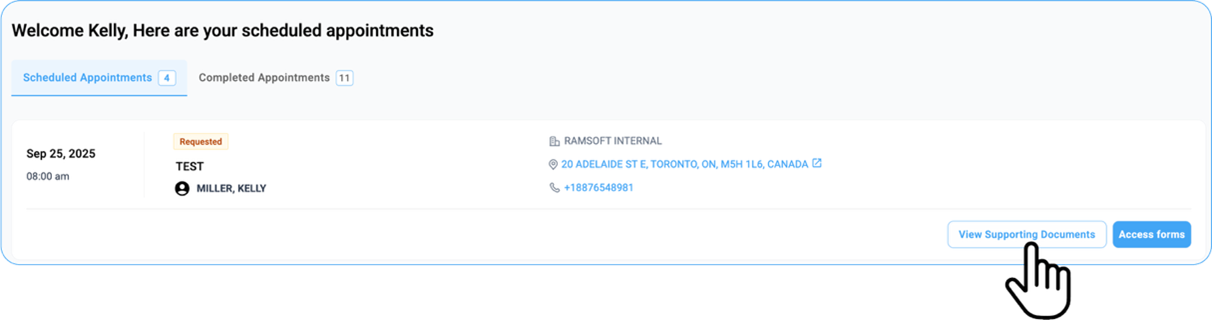
- To upload documents for your scheduled appointment, click Upload Files.

-
Click on the View Supporting Documents option to view the attached documents/images.
-
Upload any additional supporting documents using the Upload option (arrow icon) on the left panel.
-
You can also zoom in or out, download, or print the document using the options located below the page.
Mobile
-
The View Attachments option has now been renamed to View Supporting Documents for better clarity.
-
Under Scheduled Appointments, when the appointment status is set to Requested, the View Supporting Documents option will be available at the bottom of the selected appointment card. This allows you to easily access any documents that were uploaded while the appointment was being requested.